Securing your boot device
The boot device is essential to your Unraid server, as it stores all configuration data, licensing, and system settings. Due to its importance, it is crucial to keep its contents secure and accessible at all times.
Backups
Having a recent backup of your boot device ensures you can quickly recover from hardware failures, accidental changes, or data corruption. Be sure to create backups in the following situations:
- Before upgrading Unraid or installing plugins
- After adding or removing drives
- After changing network, share, or security settings
- Before making any major configuration changes
- Periodically, as part of your regular maintenance routine
To back up your boot device using the Unraid WebGUI, follow these steps:
- Select your boot device from the Main tab.
- In the Boot Device tab, click Boot Device Backup.
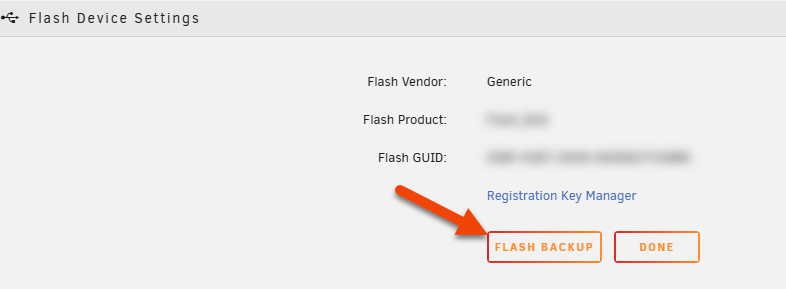
- Unraid will create a ZIP file containing the boot device's contents.
- Save this ZIP file to a secure location outside your Unraid server (like a separate PC, NAS, or cloud storage).
If you need to recreate your boot device, use this backup with the USB Creator tool.
Consider keeping a screenshot of your disk assignments after any hardware changes. This ensures correct drive placement if you need to restore from your backup.
Network access
You can control whether your boot device is accessible over the network, similar to other shares in Unraid. However, network access should be restricted since the boot device contains sensitive configuration and licensing data. Consider the following:
- Network visibility: Decide if your boot device should be visible or hidden on your network.
- Access rights: If network access is enabled, set permissions to limit who can view or modify its contents.
- Disable sharing: Set the boot device's SMB export to No to prevent network access entirely.
- Restrict access: If you must share the boot device, set security to Private and grant access only to trusted users with strong passwords.
- Avoid public access: Never leave the
flashshare set to Public or Secure with guest write access.
These steps help prevent unauthorized changes or exposure of critical files.
Permissions
To enhance system security, files on the boot device can no longer be given execute permission. This change prevents malicious or unintended code from running directly off the boot device, reducing the risk of exploitation or accidental system modification.
If you have custom scripts or programs stored on the boot device, follow these steps:
-
Copy scripts to an executable location:
- Use
/usr/local/binif you want the scripts on the default system path. - Automate this by adding copy commands to your
config/gofile. - After copying, set the execute permission on the files.
- Use
-
Run scripts with an interpreter:
- Prefix the script with the interpreter (e.g.,
bash /boot/config/scripts/myscript.sh).
- Prefix the script with the interpreter (e.g.,
This approach keeps your system secure while allowing advanced users to run their scripts.